Bottom Toolbar
From left to right: Effects Bypass, Loop, Beats, Play/Pause, Follow Playhead / Centre Playhead, Return to Start, and Notes. Lit switches are on; a brief status message appears after use.
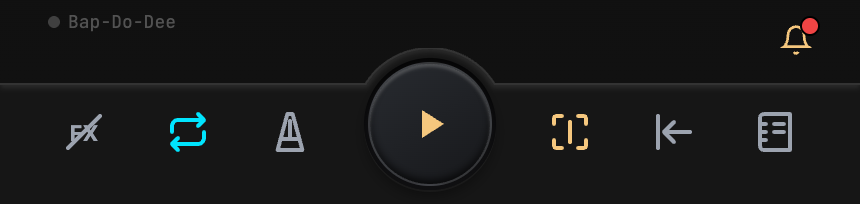
Effects Bypass
Temporarily bypass speed, pitch, and EQ processing; tap again to restore them and compare before/after processing.
Stem volume, mute, solo, and pan still apply. To hear the original mix, disable stem playback separately.
Loop
Tap to enable/disable A/B looping. If no range exists, set one with the ruler or SET A/B first.
Hold to open the loop menu for Auto-Speed and Loop Interval.
Beats
Open the beat menu to detect beats, adjust density and snapping, or enable the metronome or Count-in. With the metronome enabled, the button indicator flashes with the beats. See Beats.
Play/Pause
Start or pause playback. With Count-in enabled, the bottom Play button counts in first; tapping the disc center starts directly, skipping the count-in.
Follow Playhead / Centre Playhead
When enabled, the playhead stays in the waveform's middle and dragging scrubs forward/backward. When disabled, the waveform stops following automatically, and dragging pans the view. Different interfaces may call this button Follow Playhead or Centre Playhead; it works the same way. See Waveform and Ruler.
Return to Start
When enabled, pausing returns to where the current playback began. Use it to start repeatedly from the same position.
Notes
Open the current project's global note to record the key, song structure, or practice plan. Open clip-specific notes from clip controls. See Notes.