Using a Tablet
iPad and Android tablet apps adapt to the window width. In wide windows, the disc and tools can sit side by side; in portrait or split-screen mode, the regions rearrange. Rotating the device or resizing the window does not reopen the project.
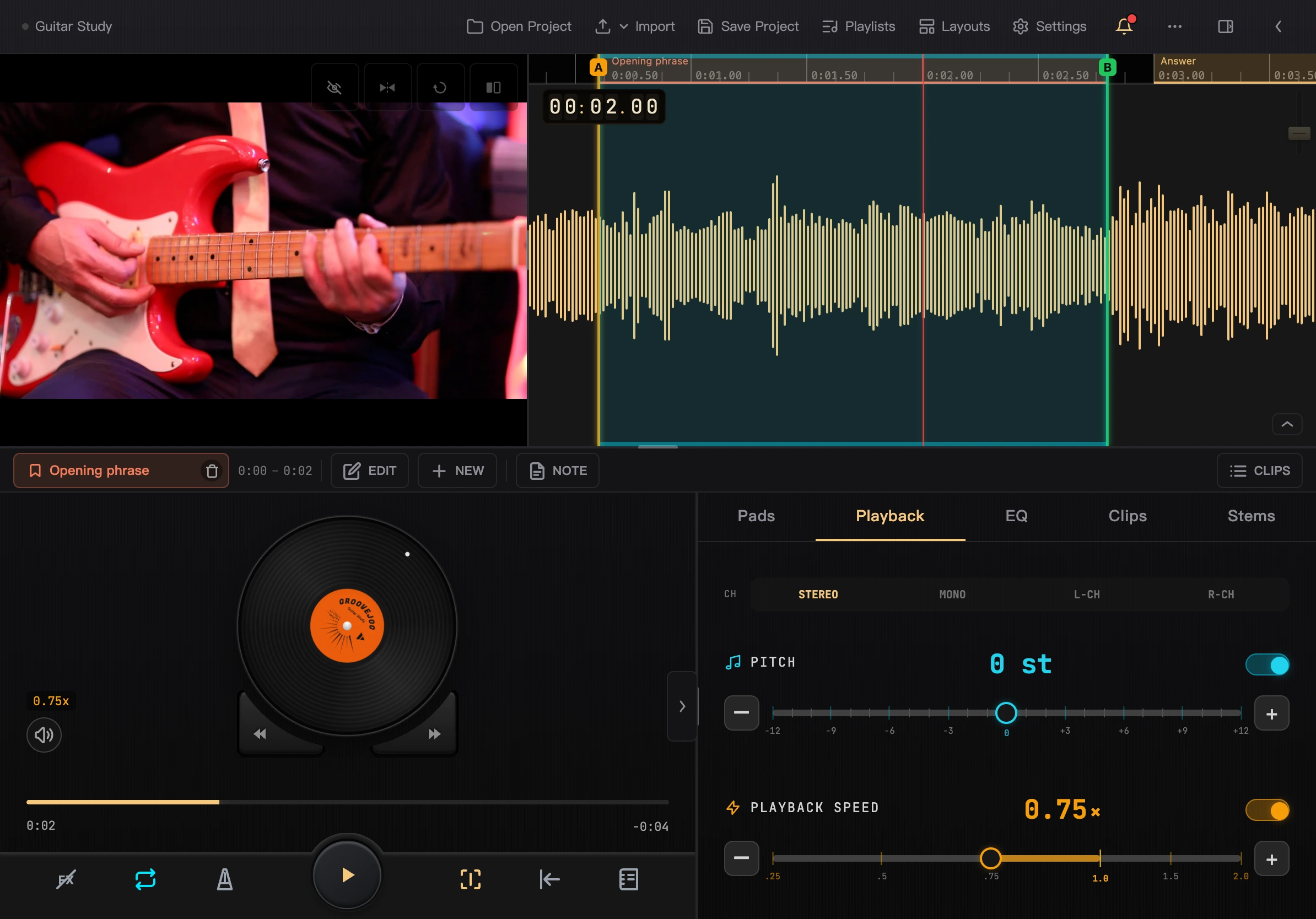
Select the image to view it at full size.
Top Toolbar
Tap the project name on the left to open Project Info. The gray dot beside it means the project is saved; an amber indicator and asterisk mean there are unsaved changes.
The toolbar provides Open, Import, Save, Playlists, Settings, Notifications, and Layout controls.
- Import: choose a file, use the photo library, or record audio/video. The actual options depend on the device.
- More: export, save as, edit media, close the project, and use LAN transfer. Keyboard shortcuts also appear after a keyboard has been used.
- Layout: choose a preset or save the current arrangement. See Save and Switch Layouts.
In narrower windows, some buttons show only icons; hold them to see their names.
Collapse the Toolbar and Panels
Collapsing the top toolbar turns the project name into a small label at the media region's upper left. The menu, notifications, and expand control remain in the disc region. Use the menu when you need to import, save, or open the layout library.
The tool tabs beside the disc include Pads, Playback, EQ, Clips, and Stems. Tap a tab or swipe horizontally within the tool panel. The lock button on Pads prevents a horizontal swipe from switching away.
The arrow on the tool panel divider collapses or expands it. The loop/clip bar has its own collapse button. Collapsing only frees up space; expand again to continue using it.
Resize the Regions
Drag dividers between regions to resize video, waveform, and tool panels. Double-tap a divider to restore that region's default size.
The arrangement button in the video corner switches between stacked, video on the left, and video on the right. Under General in Settings, choose whether the tools are on the left or right, or restore the default layout.
The disc shrinks with the available space and becomes a half-disc when the region is short. You can still drag it to scrub and use playback controls.
Landscape, Portrait, and Split Screen
Wide and medium-width windows remember their arrangements separately. Below 600 pixels wide, the app uses the compact interface; widening the window restores the corresponding tablet layout.
The layout library also saves separately by screen type. You cannot save or apply layouts in a narrow split-screen window; widen it first. See Layouts and Window Size.
Use a Keyboard
With a keyboard or Bluetooth page-turning pedal connected, use keys to play, seek, set loop points, trigger pads, and switch tool tabs. See Keyboard Shortcuts.
Project Library, Playlists, and Settings
- Project Library: in wider windows, preview a project first and select “Open Project” to switch the workspace.
- Playlists: in wider windows, the browser and current player sit side by side. Browsing another playlist does not immediately replace the playing queue.
- Settings: in wider windows, choose a category in the sidebar and change its options on the right.
Tablets retain the app's instrument separation, model management, audio/video recording, export, and LAN transfer. Follow the shared feature chapters; see Platforms for differences.